Extracting Family Groups
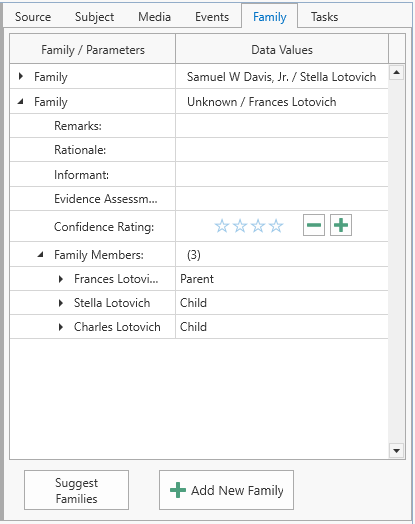 Clooz allows you to extract family groupings from the data entered in an Information Record
 Information Records in Clooz hold the content information coming from a document or other source. These differ from a Source record that contains most of the citation information describing the docment, or the Repository record referring to the facility or online service where the document was found.. These family relationships should be strictly limited to those supported by the data in this Information Record alone and not in combination with any other data source A source record in Clooz should be viewed as the higher level components of a source citation. Citation details are pulled from the citing Information Record. or record. These family relationships may in fact conflict with those defined in other Information Record. The purpose here is to identify what the various Information Records tell you and then make an informed judgment on what a concluding set family groups should be based on the complete set of available information.
The family groups you extract are listed in the right-side panel under the Family tab.
The family relationships are in the form of parent or child roles. Thus a given Subject Subjects are the objects you are gathering information about. In most cases with Clooz, this is people. However, Clooz supports several other types of subjects such as businesses, real estate/buildings, ships and artifacts. can be in more than one family group, as a parent in some, and child in others.
The rationale for the family's accuracy can be described, as well as the all important assessment of who the informant was and its assessment as evidence. The evidence assessment field is left as free text for the user to apply whatever system they choose to follow, such as identifying the source as original, derived, or authored, the information as primary or secondary, and the evidence as direct or indirect. See the list of recommended references regarding evidence analysis techniques. An additional star-based confidence rating field is also provided (supporting both positive and negative assessments).
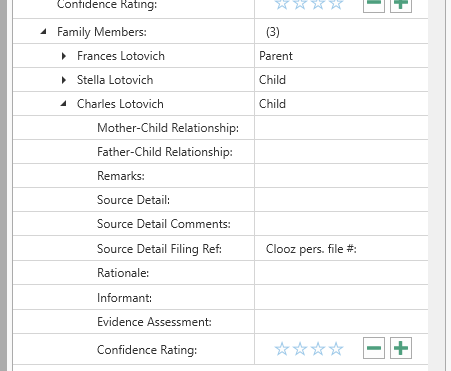 Each family group has a list of members, with a set of data fields allowing you to document further notes, source details, and evidence assessments for each participant.
Adding Family Groups to an Information Record
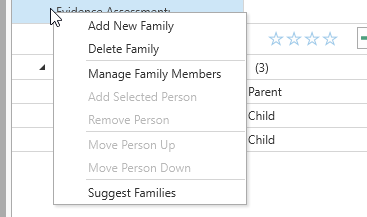 There are several ways to add a family to an Information Record.
Automatic Family Generation
Click the Suggest Families button (or right click a family and choose that command from the context menu) to have Clooz generate a set of families when the Information Record details clearly define these. Census documents are rich sources for automatically defining families since they typically contain family relationship information.
If there are already families for the Information Record, Clooz will ask if the new families should replace existing ones, or be added in addition to the existing ones.
Manually Add New Family
To define your own families, click the Add New Family button (or right click the grid and choose that command from the context menu). A blank family will be added to the list. You will then need to perform the following:
-
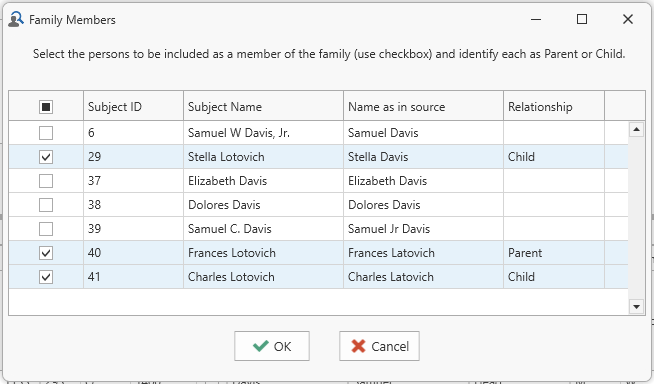 Select the persons to be included as a member of the family from the dialog window that pops up listing all of the Information Record's Subjects. Check the boxes for those to be included, and set the Relationship for each (Parent or Child).
 -
Families must have at least two members. These can be 2 Parents, 2 Children (siblings), or any mix thereof.
-
Click OK when done.
Deleting Families from an Information Record
To delete a family, right-click on the family and select Delete Family from the context menu which pops up.
Managing Family Members
There are two methods for adding members to a family:
 Manage Family Members Command
-
Right-click the family (any row within the family) and select Manage Family Members.
-
A window will pop up listing the Subjects linked to the Information Record. Set the checkboxes for all of the Subjects that are to be members of the family. Clear the checkbox for any not to be included.
- Set the Parent or Child relationship for each.
- Click OK.
- Adjust the title of the family if required.
 Add Selected Person Command
- Select a Subject in the Information Record's list of Subjects (or tabular grid).
- Right-click in the family, and click Add Selected Person (or whatever type the selected Subject is).
- Repeat as necessary for other family members.
- Once the names appear in the family panel, update their Parent / Child relationship (the field to the right of their name).
- Adjust the title of the family if required.
To remove a family member from the family, right-click the person and select Remove Person in the context menu.
You can change the order of the family members by right-clicking the one you want to move and select Move Up or Move Down in the context menu.