Information Record Export
Exporting Information Records Information Records in Clooz hold the content information coming from a document or other source. These differ from a Source record that contains most of the citation information describing the docment, or the Repository record referring to the facility or online service where the document was found. from Clooz to external files provides the ability for you to export all of the various types of data in Clooz related to that record. This includes: all of the people linked to the record, along with any events and family relationships you had extracted, the source A source record in Clooz should be viewed as the higher level components of a source citation. Citation details are pulled from the citing Information Record. of the information, the repository Where a source document or item was found. This could be a physical library facility or online data provider. where it was found, and any media files attached to the record or the source. The export window contains tabs for each of the principal data types.
Prior to clicking the Export button to execute the actual transfer of data, always review each of the tab pages to make certain the data to be exported is what you are expecting.
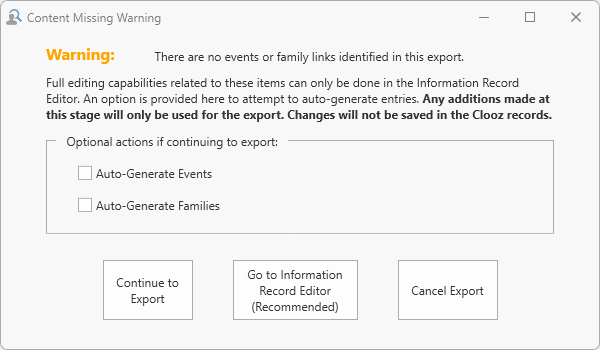 When exporting an Information Record, if there are no events or family relationships associated with the record, a warning message will appear. There is no requirement that events or family relationships be created, rather, the warning is just making sure you have not forgotten to process the information found in the source document. You need to indicate how you want to proceed:
-
Click Continue to Export to go forward with the export as is. If you checked the auto-generate boxes, Clooz will first make an attempt to generate event or family records based on the data in the Information Record. Other than auto-generated items, no new events or families can be manually setup at this stage. You would need to edit the Information Record to accomplish that.
-
Click Go To Information Record Editor to exit the export operation and immediately bring up the Information Record in its editor. You then would have full control to extract events or family relationships. If you believe the Information Record may provide evidence of events or family relationships, this is the recommended choice.
-
Click Cancel Export to exit the export operation and return to the main screen of Information Records.
People Tab
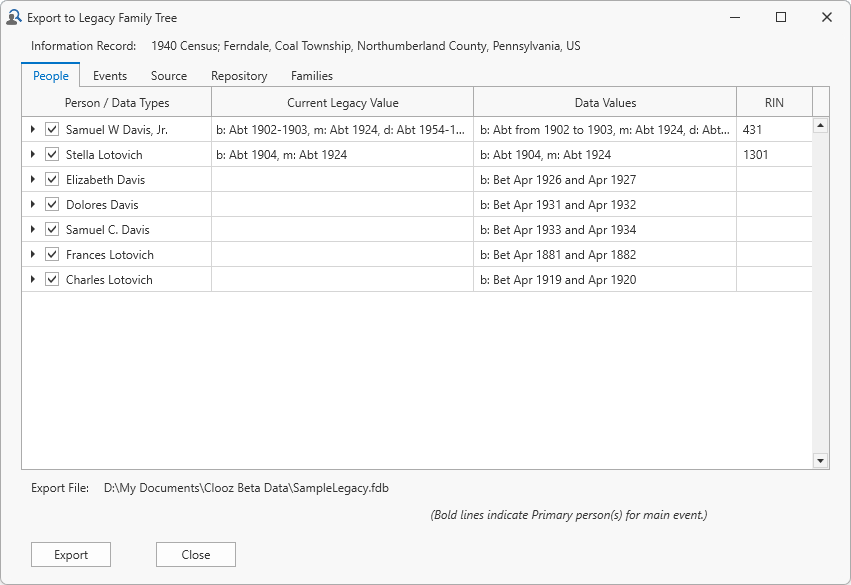 Subjects Subjects are the objects you are gathering information about. In most cases with Clooz, this is people. However, Clooz supports several other types of subjects such as businesses, real estate/buildings, ships and artifacts. being exported by the Record Exporter appear on the People tab page within the exporter window. You have complete control over what information will be exported using the controls provided. People are the only Subjects that can be exported since no other software supports the other Subject types.
See the Subject Record Export topic for an explanation of what this tab contains.
When exporting Information Records, the People tab will include all of the people linked to that record. This may or may not include persons you do not want to include in your family tree (such as a household servant or boarder). You can include or exclude a person using the check box by their name.
Events Tab
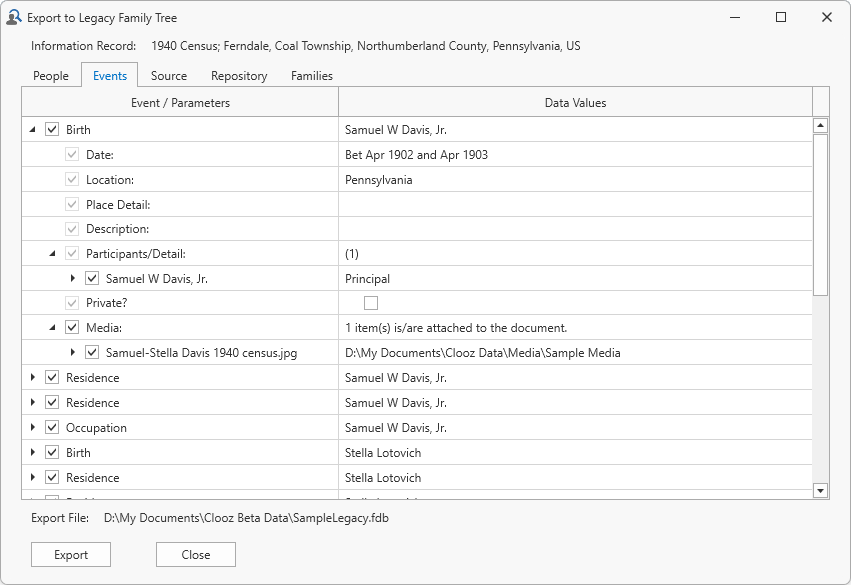 The Events tab page includes all of the events you have extracted for persons based on the Information Record being exported. You can control which details are exported using the check boxes. The content fields are editable, so you can make temporary changes to the text that will be exported without affecting the Clooz records. The Events page here is much the same as the Events panel in the Information Record editor, without the ability to manually create events or manage the list of participants.
Events will only be shown for persons selected to be included under the People tab (check box by their name is checked).
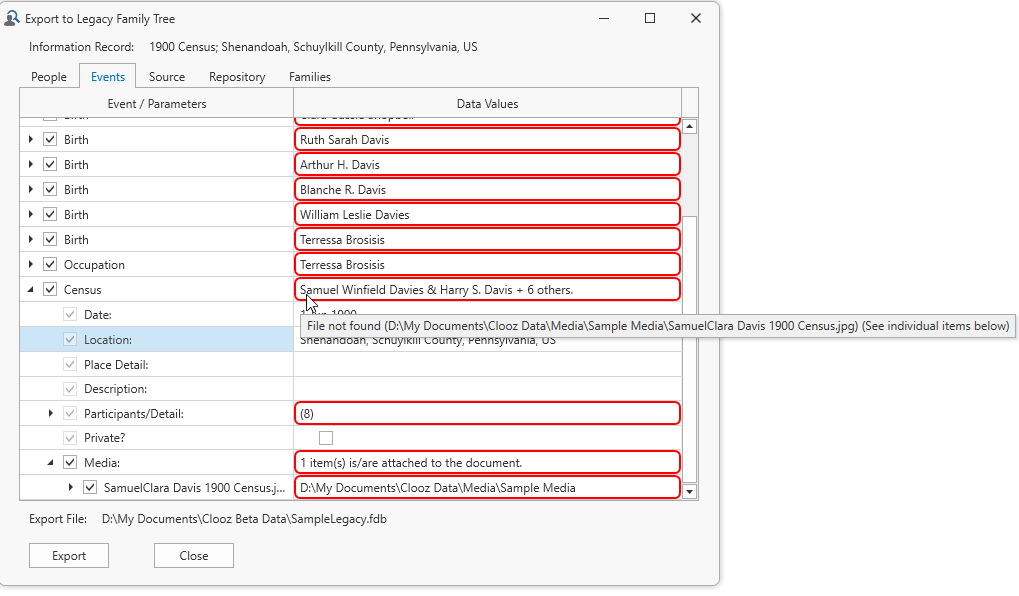 If Clooz finds errors in what is being exported, the cell is outlined in red, as well as all of its higher level cells in the hierarchy.
Hover the cursor over a cell to see what the error is.
Source Tab
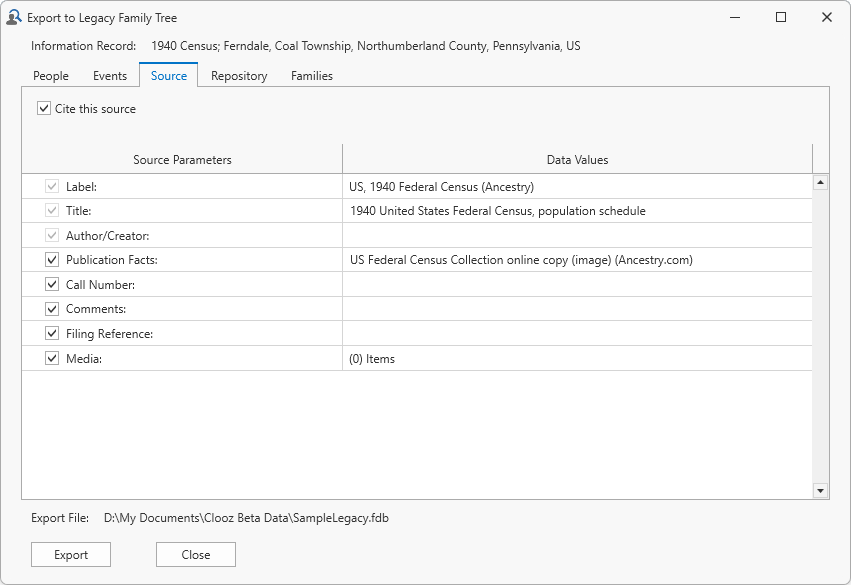 A Source record being exported by the Record Exporter appears on the Source tab within the exporter window. You have complete control over what information will be exported using the controls provided. The associated Repository is also included on the Repository tab page.
See the Source Record Export topic for an explanation of what this tab contains.
Repository Tab
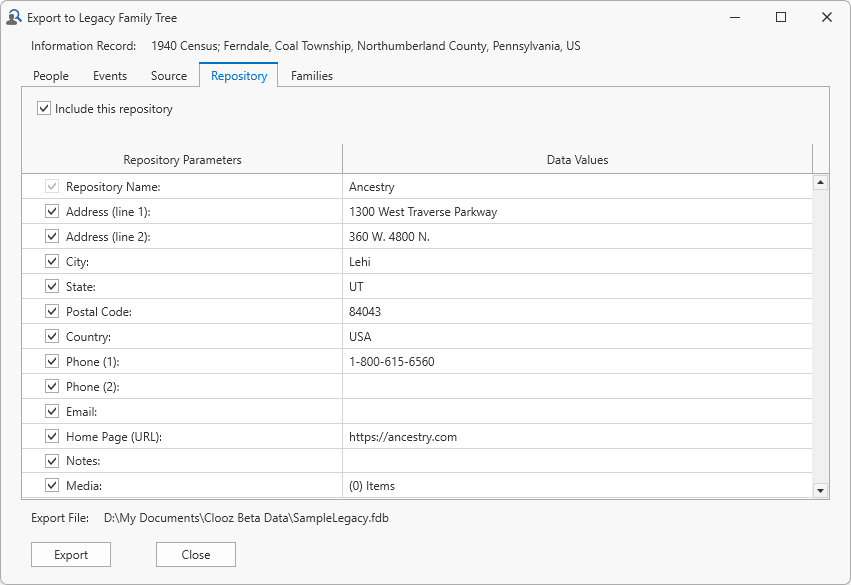 A Repository record being exported by the Record Exporter appears on the Repository tab within the exporter window. You have complete control over what information will be exported using the controls provided.
See the Repository Record Export topic for an explanation of what this tab contains.
Families Tab
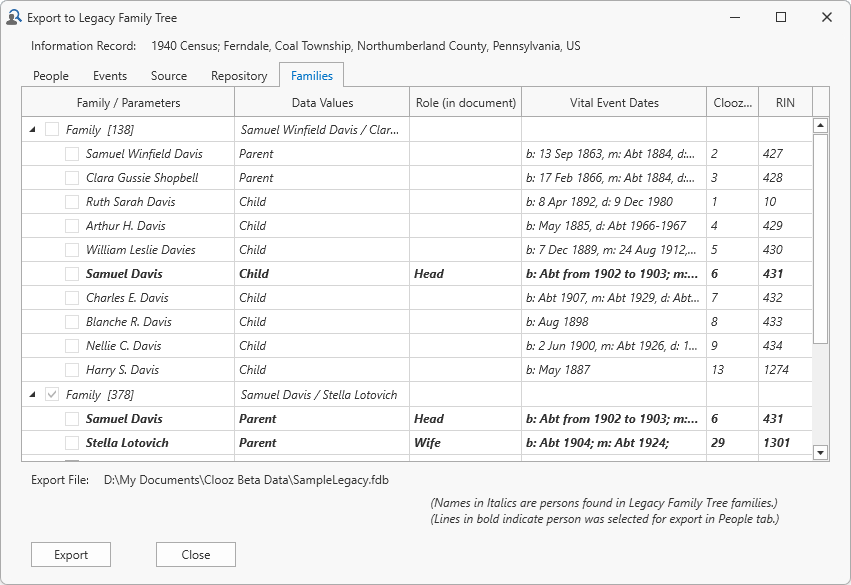 The Families tab page contains the parent-child relationships that were identified based on the Information Record being exported. If some of the family members are already linked to records in the external file, Clooz will show any additional family members found in the external file (shown in italic font). Family members who are part of this export (selected on the People tab page of this exporter) are shown in bold font.
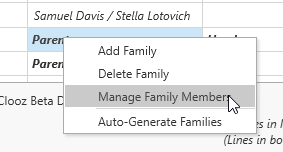 You can make adjustments to the family relationships by right-clicking anywhere on the list and selecting the desired function from the context menu.
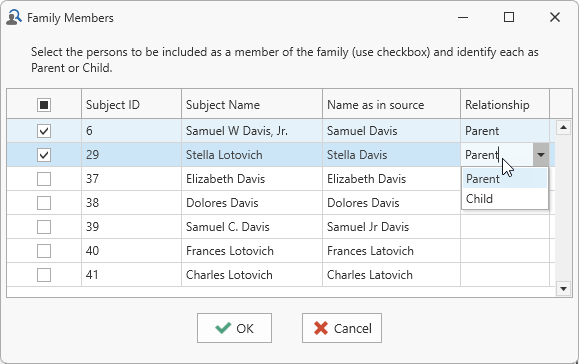 When using the Manage Family Member function, check the boxes for those person who should be part of the family, and indicate their parent or child role using the drop down list selections. A family must have at least two members (two parents, two sibling children, or one parent and one child). No more than two parents are allowed.
A given person can appear in more than one family, with different roles (parent, child), spouses, or parents.
This page operates much the same as the Family panel in the Information Record editor.