Clooz 5 Installation Instructions
-
Open your browser and go to: https://downloads.clooz.com
-
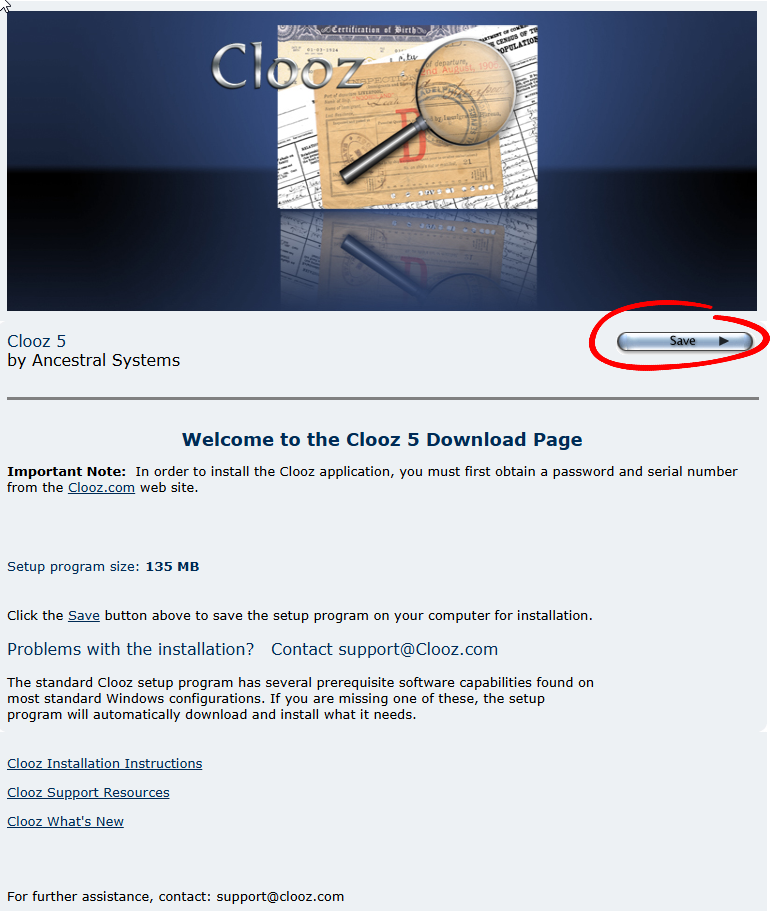
Select "Save" to download the clooz5setup.exe file to your computer.
-
After a few seconds, the download should automatically begin. Depending on your browser, you may need to set the location on your system where the file should be placed. Normally it defaults to the Downloads folder.
-
It is possible the Clooz 5 setup program will get flagged as being a new program by your virus protection program, at least until some number of users download it. You may need to instruct your virus protection program to run it, provided you didn't see any other issues reported.
-
Once you successfully get past any security messages, Windows will likely show yet another message asking for administrative approval to run the program. You should see Ancestral Systems as the publisher in that message. Click "Yes".
-
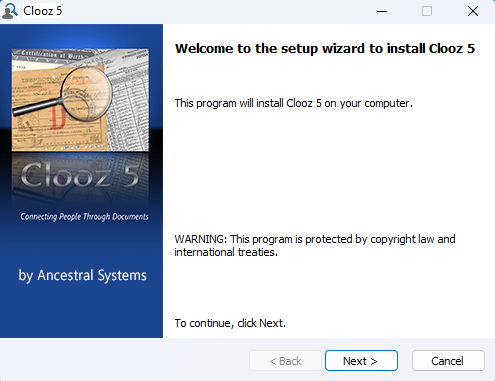
The actual installation now begins.
-
Click Next.
-
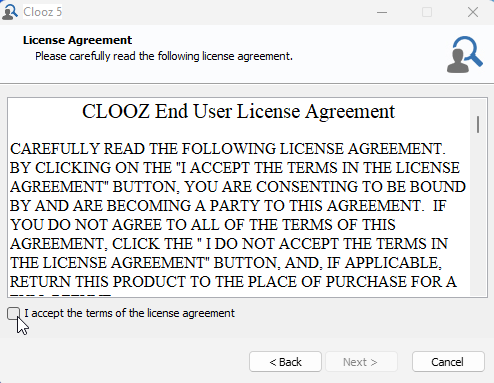
Accept the terms of the license agreement. Then click "Next".
-
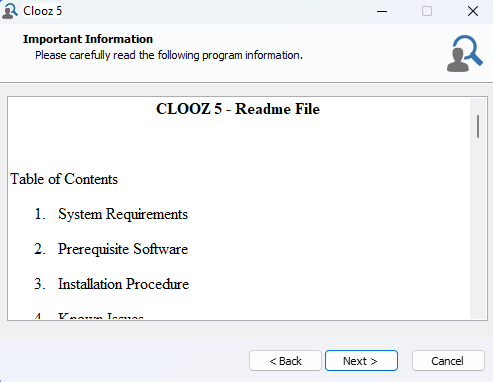
Review the Readme file, then click "Next".
-
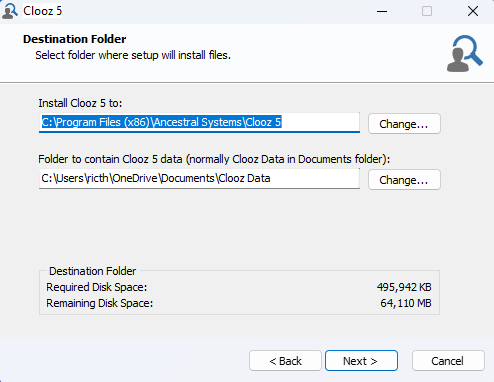
The Destination Folder screen allows you to install the program at another location, if necessary. It is recommended you accept the default value. Then click "Next" to accept the selected location.
-
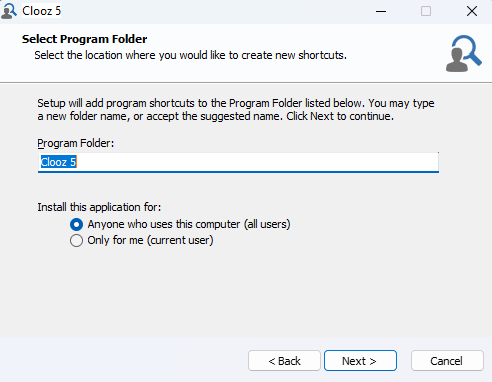
It is recommended you select the installation defaults. Click "Next".
-
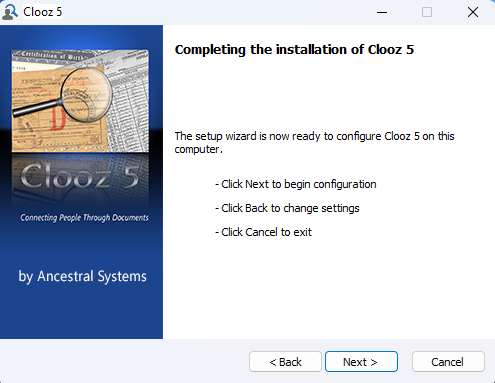
Click "Next", and the installation will proceed.
-
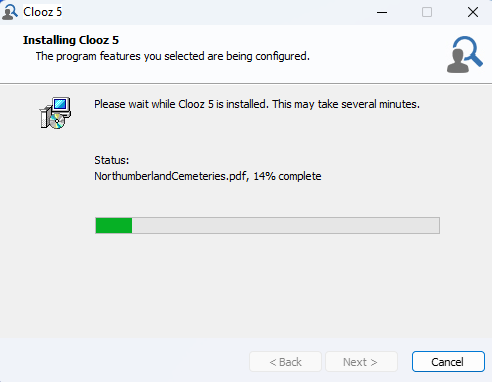
The progress bar will show the installation progressing. Let the installation complete.
-
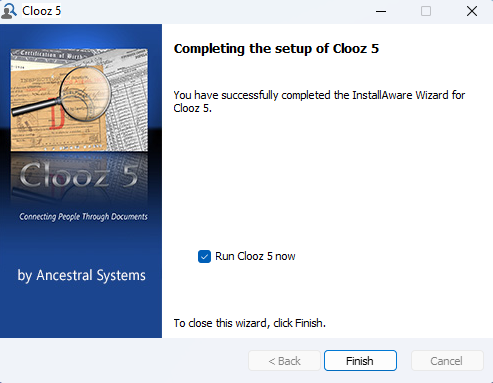
When the installation is complete, a "Finished" message will appear. The check box gives you the option to immediately run Clooz 5.
-
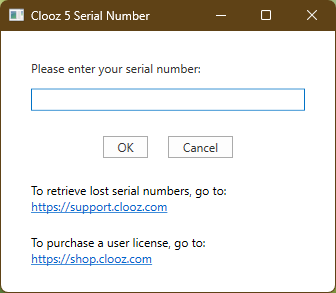
When Clooz is run for the first time, your serial number will be requested (unless you previously installed version 5 of Clooz). Enter the serial number you received when purchasing a user license, or received a serial number for trial use.
-
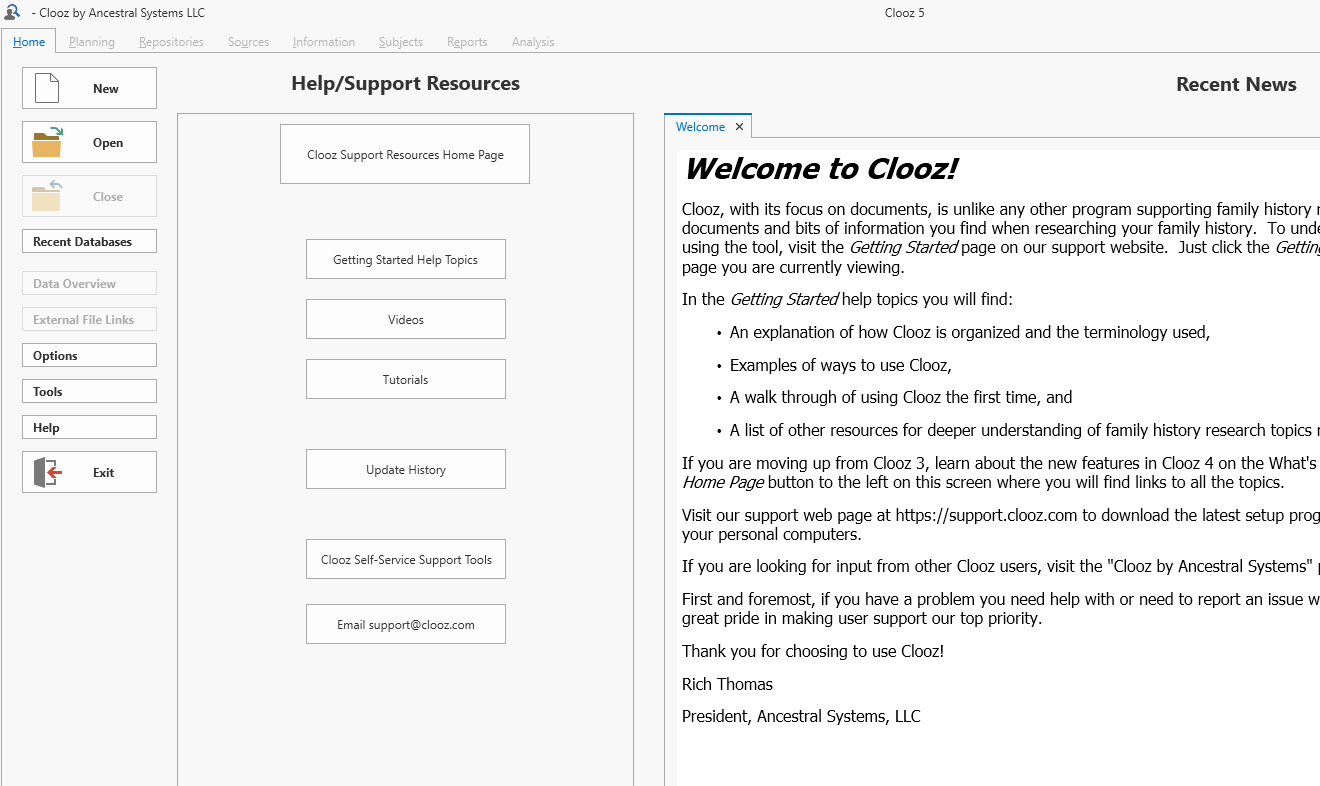
You are now ready to get on with your family history research!
-
Go ahead and click the Open button and select the Sample.clz database to get you started in learning how to use Clooz.